The Studi Ecolems app brings together courses, messaging, and a media library on a single platform. To access it, you need valid credentials, a connected device, and a compatible browser. The rest is a matter of method: each step has its pitfalls, and knowing them avoids most of the blockages reported by learners.
Compatible Browsers and Devices for the Studi Ecolems App
The platform and mobile applications are accessible from a computer, tablet, or connected smartphone. The apps can be downloaded from Google Play and the App Store, and connection fees are the responsibility of the learner.
On the browser side, only Chrome and Firefox are officially supported for the web version. Using Safari, Edge, or a built-in phone browser may cause display errors or a connection refusal without a clear message. Before any attempt, check that your browser is up to date and that cookies are enabled, as the site requires their validation to open a session.
The procedure for connecting to the Studi Ecolems app relies on these technical prerequisites, and most first connection failures stem from an unsupported browser or cookies blocked by default.
Studi Ecolems Credentials: Where to Find Them and How to Protect Them
The link to the platform is sent by email after registration confirmation. This email also contains the first connection credentials. If you can’t find it in your inbox, check the “spam” and “promotions” folders, as anti-spam filters regularly classify these automated messages.
The email address used as the identifier is the one provided during registration. Any typing error at this stage (letter inversion, old email) creates a mismatch between the account created by Studi and the address you are trying to use.

The general terms and conditions of sale from Studi specify that the access code and password are strictly confidential. They should not be shared, even to access the software available on the platform. This rule protects your personal data and your training path.
Forgot Password: The Reset Procedure
On the login page app.ecolems.com, a “Forgot Password?” link triggers the sending of a reset email. The message arrives at the address associated with the account, not at an address of your choice.
If no email arrives after a few minutes, three checks are necessary:
- The entered address matches exactly the one used during registration, without spaces or unwanted capital letters.
- The spam or junk mail folder does not contain the reset message.
- The mailbox is not full, as some providers silently reject incoming messages in this case.
First Connection on app.ecolems.com: Concrete Steps
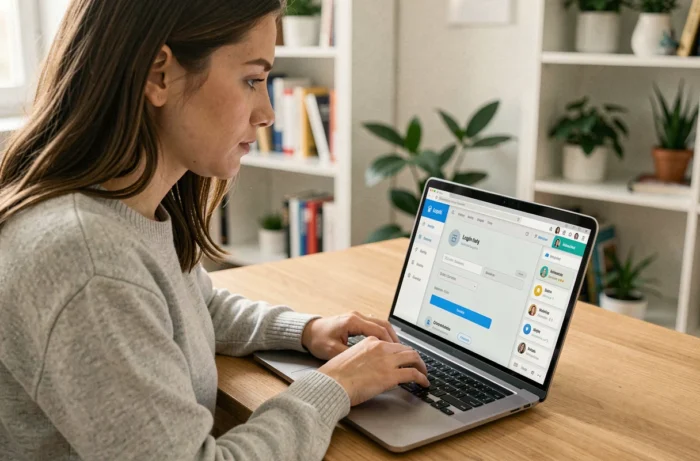
Open Chrome or Firefox, then go to app.ecolems.com. The page displays two fields: email and password. Enter the address used during your registration and the password received or set. Click on “Log In”.
If the page does not load or displays an error message related to cookies, clear the browser cache and re-enable cookies in the settings. On mobile, the app downloaded from the store works in the same way: email, password, validation.
After the first connection, take the time to change the temporary password. Choose a combination that you do not use on other sites. This change can be made directly from the account settings, without contacting support.
Frequent Blockages: Maintenance, Bugs, and Reporting
A failed connection does not always mean an error on your part. Studi anticipates service interruptions in case of outages, maintenance, or technical evolution of the platform. The advertised accessibility 24/7 does not cover these situations. If the page remains inaccessible after checking your credentials and browser, it may be a planned intervention.
The platform includes a “Report a Bug” button at the bottom of the page. This channel only addresses technical issues related to the web or mobile application. Educational questions (error in a course, missing content, scheduling issue) fall under a different circuit.

When to Contact Studi Support
Some blockages cannot be resolved independently. Here are the cases where technical support becomes the only option:
- The reset email never arrives, even after checking spam and the address.
- The account seems non-existent even though registration has been confirmed by email or another channel.
- A technical error message persists after clearing the cache, changing browsers, and testing on another device.
- The mobile app crashes consistently at launch, even after reinstallation.
Support responds via email, phone, and through the online help space. Providing a screenshot of the error message and specifying the browser used speeds up processing.
The majority of connection difficulties to Studi Ecolems are due to three factors: an unsupported browser, a misspelled email address, or disabled cookies. Correcting these three points resolves most blockages without going through support.