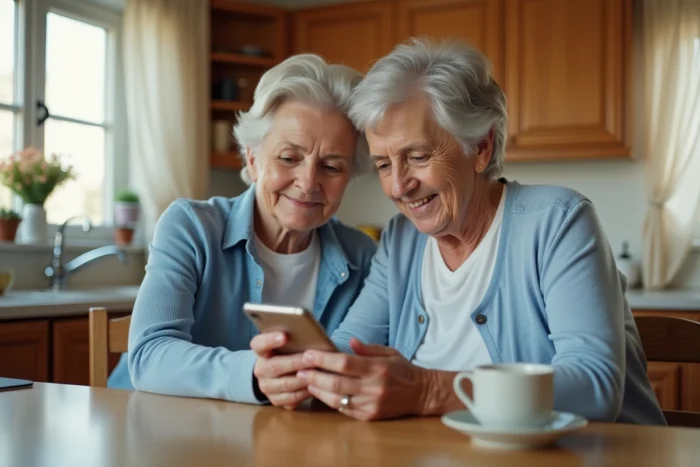
My Proxima often comes up in discussions among families concerned with a legal protection measure. Family guardians, curators, and caregivers all end up searching for this application in their phone’s store. The reflex is logical, but it leads to a dead end. My Proxima is not a native application distributed on Google Play or the App Store. The tool operates entirely in a web browser, without any local installation.
My Proxima on mobile: a web application, not an app to install
The confusion is frequent and understandable. On a smartphone, the boundary between a website and a downloaded application has blurred over the years. For a senior who is not very familiar with digital technology, the distinction is not obvious at all.
My Proxima is accessible via Chrome, Safari, or any other mobile browser, just like accessing a banking site. No files are downloaded, and no automatic updates will clutter the phone’s memory. Access is done by typing the website address or using a search engine.
This architecture has a direct consequence for families supporting an elderly relative: the instruction to explain is not “download this app,” but “open your browser and go to this site.” The vocabulary used when speaking to the senior changes everything. Talking about downloading creates an expectation (searching the store, pressing “Install”) that does not correspond to reality. A detailed tutorial explains how to download My Proxima on mobile while taking this peculiarity into account.
Create a shortcut on the senior’s phone home screen
The real useful action, which replaces the classic download, is to add a shortcut to My Proxima directly on the smartphone’s home screen. The visual result is identical to an installed application: an icon, a name, and access with a single tap.
On Android with Chrome, the process involves the three-dot menu at the top right, then “Add to Home screen.” On an iPhone with Safari, it’s the share icon (the square with the arrow) followed by “Add to Home screen.”
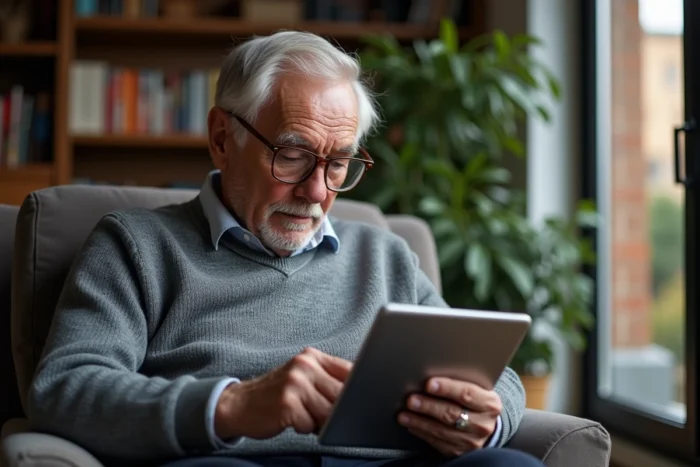
For a senior relative, this shortcut removes the friction of having to open a browser and then type an address. The icon appears among the other applications. The interface loads in full screen, without a visible address bar, which reinforces the impression of using a real application.
- On Android: open Chrome, go to the My Proxima site, three-dot menu, “Add to Home screen,” confirm the name
- On iPhone: open Safari (and not Chrome, which does not offer this function on iOS in the same way), share icon, “Add to Home screen”
- In both cases, ensure that the page displayed at the time of adding is indeed the login page, so that the shortcut points directly to the right place
A detail often overlooked: if the senior uses a browser other than the system’s default, the shortcut may not work correctly. It’s better to stick to Chrome on Android and Safari on iPhone for this operation.
Simplify My Proxima login for a protected adult
Creating the shortcut is not enough. Each time My Proxima is opened, it will require a username and password. For an elderly person who regularly forgets their codes, this step becomes the real bottleneck.
The password manager built into the phone is the most reliable solution. On Android, the autofill via the Google account offers to save the credentials from the first login. On iPhone, the iCloud keychain serves the same purpose. In both cases, the senior only needs to validate with a fingerprint or facial recognition instead of retyping their codes.
Some precautions during the initial setup deserve attention. The password provided by the judicial representative must be entered once by the caregiver, in the presence of the senior, and then saved in the manager. It is preferable not to change this password without informing the representative, as coordination between the guardian and the protected adult also relies on these shared accesses.
Field feedback varies on the actual ability of elderly individuals to use the My Proxima mobile interface independently after this setup. For some seniors, checking their bank account balances through the tool becomes a reassuring daily gesture. For others, even with the shortcut and autofill, the assistance of a relative remains necessary for each consultation.
Limitations of My Proxima mobile access for seniors
The My Proxima web application allows the protected adult to check the balance of their bank accounts and the latest recorded transactions. This direct consultation feature aims to establish a transparent relationship with the representative.
However, My Proxima does not cover all interactions related to the protection measure. The protected person can consult but does not perform banking operations through the tool. Therefore, the application’s scope remains limited to financial transparency.
On a small smartphone screen, the readability of account tables can be an issue. The characters are sometimes too small for someone with diminished vision. Increasing the font size in the phone settings significantly improves comfort but may also misalign some elements of the web interface.
A rarely discussed point concerns connectivity. Since My Proxima is an online tool, no consultation is possible without an internet connection. For a senior living in a rural area with weak mobile coverage, or in a facility with restricted Wi-Fi, this reliance on the network can turn every connection attempt into a source of frustration.
Support does not stop at the technical setup. Regularly checking that the shortcut works, that the saved password has not expired, and that the browser is up to date: these small periodic checks prevent the senior from getting stuck without knowing why. The simplest technology in the world remains complex when one has spent their life without a touchscreen.