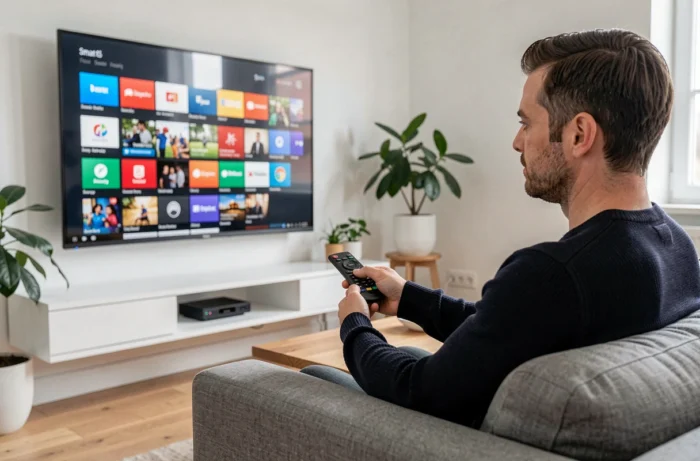
We just bought a Philips Smart TV, we turn it on, and the first question arises: how to add Netflix, Disney+, or an IPTV app that is not pre-installed? The answer depends entirely on the operating system embedded in the television. For a few years now, Philips no longer delivers a single OS across its entire range. Identifying the one running on your model is the very first step before looking for any store.
Titan OS, Google TV, or Roku: identify the system of your Philips TV
Before touching the remote control, it is necessary to address a point that many tutorials overlook. The Philips range is now divided into several software families that do not offer the same possibilities for installing applications at all.
The high-end models (OLED810, OLED820, OLED850, OLED860, OLED910, OLED950) run on Google TV based on Android 14 and come with 32 GB of storage for applications. You access the Google Play Store just like on an Android smartphone.
The more affordable models (like OLED760, OLED770) use Titan OS, Philips’ in-house system, with only 8 GB of memory. Titan OS does not provide access to the Google Play Store, nor to sideload via APK file, nor to ADB connection. Installation is limited to the application catalog integrated by Philips.
Some 32-inch models sold in North America come with Roku TV, with its own dedicated store. In Europe, these models remain rare.
To check which OS is running on your television, you can consult the section detailing applications for Philips Smart TV on Blog VIP, or simply navigate through the TV settings: the mention “Google TV,” “Android TV,” or “Titan OS” appears in the About section.
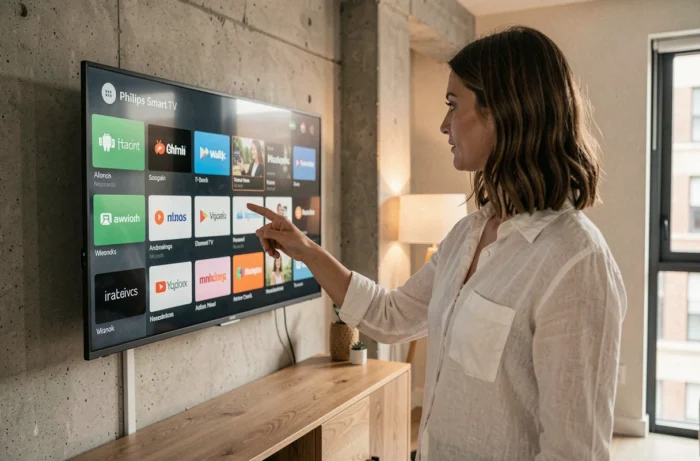
Installing an application on Philips Smart TV under Google TV
On a Philips TV equipped with Google TV, the procedure goes through the Google Play Store. You can access it from the home screen by selecting the “Apps” tab with the remote control.
Search and download from the Play Store
Press the Home button on the remote to return to the main screen. Select the “Apps” or “Applications” section, then use the search bar to type the name of the desired application.
Once the application is found, select “Install.” The download starts automatically if the TV is connected to the internet. The application then appears on the home screen or in the complete list of installed applications.
Google account and acceptance of terms
The Play Store requires a connection with a Google account. If the account was not set up during the initial setup, the TV will request it when accessing the store.
- Go to Settings, then Accounts and Sign-in, to add a Google account with your credentials
- Accept the terms of use of the Play Store when the TV displays them for the first time
- If the virtual keyboard is too slow, connect a USB keyboard or use the Google TV app on your smartphone to enter text
Some applications available on the mobile Play Store do not appear on the TV Play Store. Only applications optimized for Android TV are offered for download. Netflix, Disney+, Prime Video, Molotov, or myCanal are in the catalog, but applications designed solely for smartphones will not be listed.
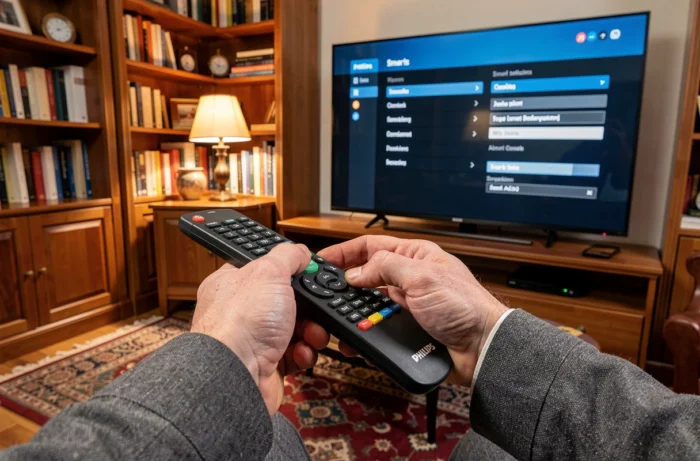
Philips Smart TV under Titan OS: the concrete limits to know
If your Philips TV runs on Titan OS, the situation changes radically. There is neither Google Play Store nor the possibility to manually load an APK file.
Installation is limited to the applications present in the Titan OS store, a catalog validated by Philips. Major streaming platforms are generally included, but the choice remains much more restricted than with Google TV.
To access the integrated store, press the Home button, then navigate to the Applications section. Browse the categories or use the search to find the desired application, and select Install.
No sideload, no ADB
Unlike Android TV models, Titan OS blocks any installation from unknown sources. There is no “Unknown Sources” menu in the settings, and no ADB connection is possible via the local network. If an application is not in the Titan OS catalog, the only alternative remains an external box like a Chromecast, Fire TV Stick, or Apple TV, connected via HDMI.
Feedback varies on the frequency of updates to the Titan OS catalog: some users notice the gradual addition of new applications, but the pace depends on Philips and agreements with publishers.
Resolving common issues when installing applications
Even on a TV running Google TV, certain situations can block installation. Here are the most common cases and their solutions.
- Insufficient memory: the 32 GB fill up quickly if you install heavy games or applications. Uninstall unused applications via Settings, then Applications, select the application, and press Uninstall
- Application not found on the Play Store: check that the country set on the Google account matches your geographical area, as some applications are region-restricted
- Unstable internet connection: prefer a wired Ethernet connection rather than Wi-Fi if the download fails or remains stuck at 0%
- System update required: some recent applications require a recent version of Android TV. Go to Settings, System, then Software Update to check
On Titan OS models with 8 GB of storage, the memory issue arises even faster. Every application counts, and you have to decide between those you actually use daily.
The key point to remember before any purchase or manipulation: check the operating system of the TV on the technical sheet. A Philips under Google TV and a Philips under Titan OS sometimes have similar series names but do not offer the same freedom regarding applications at all. This verification takes thirty seconds and avoids real disappointment after unboxing.